If you prefer watching live television, movies, and series directly on a large screen, you may wonder whether B1G IPTV works on a Smart TV. The short answer is yes, supported Smart TVs can generally use the service through a compatible IPTV player. However, the exact setup depends on whether your television uses Samsung Tizen, LG webOS, Android TV, Google TV, or another operating system. 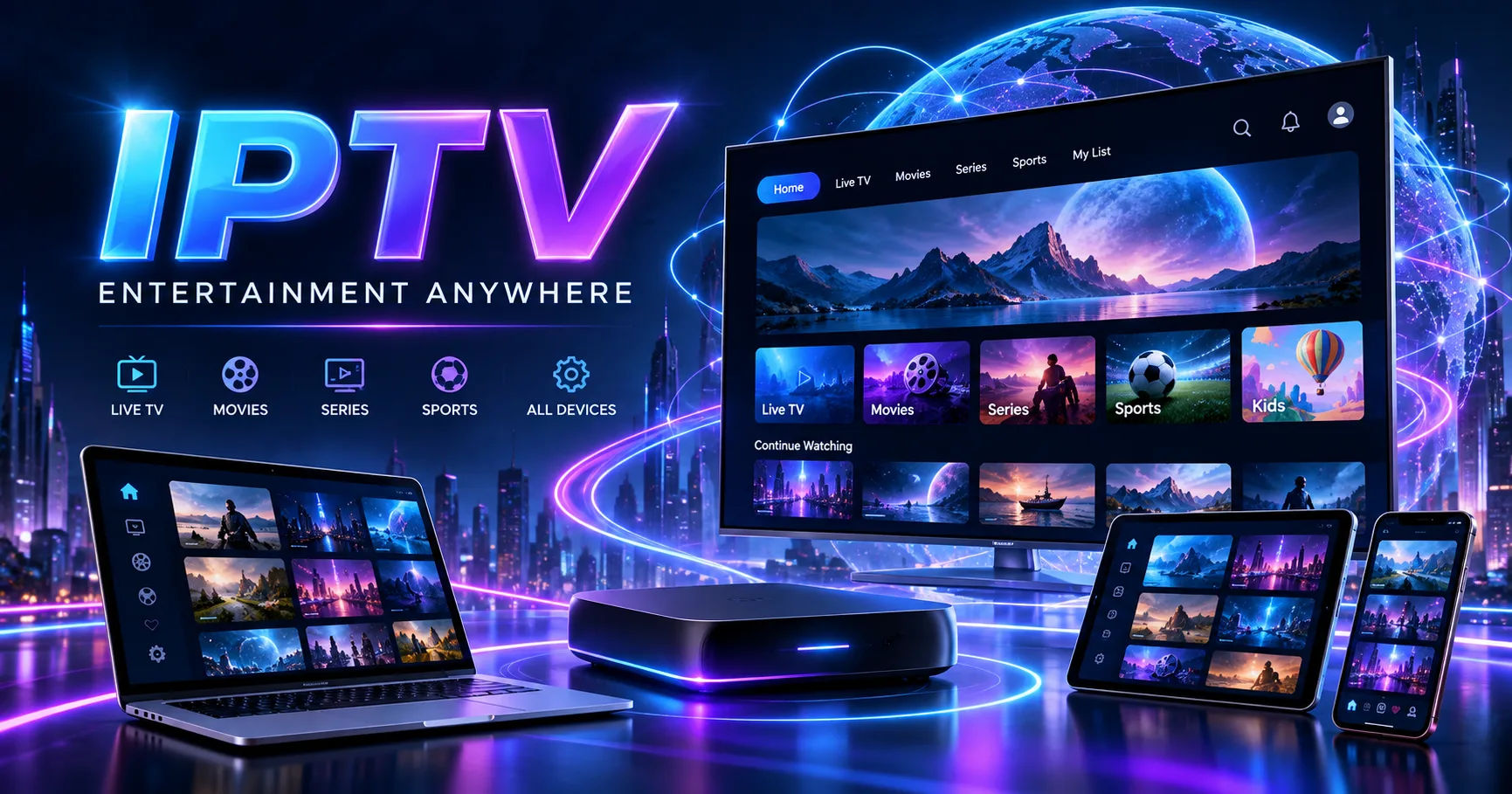 The important point is that an IPTV subscription and an IPTV player are not always the same thing. The subscription provides access credentials or a playlist, while the player is the application that displays the available content. This distinction explains why installing an app alone does not necessarily give you access to channels.
B1G IPTV can be used on supported Samsung and LG Smart TVs by installing a compatible player from the television's official app store and then adding the account information using the method supported by that player. Current setup information specifically lists Samsung and LG Smart TVs among supported options.
Before setting everything up, it is worth checking your exact TV model, operating system, internet connection, and the login method supplied with your subscription. These four details can make the difference between a straightforward installation and a frustrating afternoon with the remote control.
How Does B1G IPTV Work on a Smart TV?
A Smart TV normally does not need a separate streaming box if it supports a suitable IPTV application. Instead, the television connects to your home internet and runs an IPTV player through its own operating system.
The basic process is fairly simple. You install a compatible IPTV player, open it, enter the account information supplied with your subscription, allow the playlist or channel information to load, and then select the content you want to watch.
Some players use a username, password, and server address. Others use an M3U playlist URL. Certain Smart TV applications may use a MAC address or device key to associate a playlist with the television.
This is why two Smart TVs can require slightly different setup procedures even when they are being used with the same IPTV subscription.
Current B1G IPTV installation information states that Samsung and LG televisions generally use compatible third-party IPTV players rather than the Android APK approach used on Android-based devices.
Which Smart TVs Can Use B1G IPTV?
Samsung Smart TVs
Samsung Smart TVs commonly use the Tizen operating system. Because Tizen is different from Android, you cannot simply install an Android APK in the same way you would on an Android TV device.
Instead, you normally open Samsung's Smart Hub or Apps section and search for an IPTV player compatible with your particular television and region.
Available applications can change over time, so it is better to check the current Samsung app store rather than assuming that every application mentioned in an older setup guide will still be available.
Once you have installed a compatible player, you may need to enter your subscription details or connect a playlist through the player's supported method.
LG Smart TVs
LG Smart TVs generally use webOS. The setup is similar in principle to Samsung but uses the LG Content Store and applications designed for webOS.
You can search the store for a compatible IPTV player, install it, and then follow the player's instructions for adding your account.
Some Smart TV players use a MAC address displayed inside the application. Others provide direct fields for login information.
The important thing is to follow the authentication method supported by the particular player rather than trying to force an Android installation method onto an LG television.
Android TV and Google TV
Android TV and Google TV are somewhat different from Samsung Tizen and LG webOS because they are based on Android.
Compatible Android-based televisions can support Android IPTV applications. Current B1G IPTV information says its Android APK can be used on compatible Android TV and Google TV devices.
The exact installation process can depend on the television, Android version, region, and application source.
For security, use trusted application sources and avoid downloading unknown APK files from random websites. If an IPTV provider gives you official installation information, use that information rather than relying on an unofficial mirror.
What Do You Need Before Installation?
You do not need a complicated home entertainment system to get started.
The most important requirement is a supported Smart TV with internet access. You also need an active IPTV account and the login or playlist information associated with it.
Your provider may give you a username and password along with a server address. Alternatively, you may receive an M3U playlist URL or another type of connection information.
You should also know your TV's exact model and operating system.
This matters because application availability can differ between television models and countries. A player available on one Samsung TV, for example, may not necessarily appear on another model or in another region.
A stable internet connection is equally important. Even when the account and application are configured correctly, an unstable Wi-Fi connection can cause buffering, freezing, or interruptions.
How to Install B1G IPTV on a Smart TV
Step 1: Check Your Television
Start by identifying the television manufacturer and model.
For Samsung, determine whether the TV uses Tizen. For LG, check the webOS version. If your television uses Android TV or Google TV, the setup will generally follow an Android-based process.
You can usually find model and software information inside the television's settings menu.
Step 2: Open the Official TV App Store
Samsung users can open the Apps or Smart Hub area.
LG users can open the LG Content Store.
Android TV and Google TV users can normally open Google Play where supported.
Search for an IPTV player compatible with your particular television.
Do not assume that the first application appearing in search results is automatically the correct choice. Check whether it supports the login method associated with your subscription.
Step 3: Install a Compatible Player
After finding a compatible application, install it through the television's supported application store.
The player itself generally does not provide television programming. It acts as the interface that loads the account or playlist you provide.
This distinction is important because removing or changing the player does not necessarily mean that your underlying subscription has disappeared.
Step 4: Add Your Account
Open the player and examine the available login options.
You may be asked for a server address, username, and password. Some players instead request an M3U playlist URL.
Other Smart TV players may show a MAC address and device key and require you to associate a playlist through a separate activation or management page.
Current Smart TV setup information for B1G IPTV describes these different approaches and notes that Samsung and LG users commonly rely on compatible third-party players.
Enter credentials carefully. A single extra space or incorrect character can prevent the playlist from loading.
Step 5: Wait for the Content to Load
After entering the account information, give the application time to retrieve its channel and content information.
Depending on the player and service, you may see categories for live channels, movies, series, favorites, or electronic program guide information.
Do not immediately change several settings if the list takes a little time to appear. Restarting the application once is often more useful than randomly changing configuration options.
Step 6: Test Several Channels
Once the content appears, test more than one channel.
Try channels from different categories and, if available, test both live television and on-demand content.
This helps identify whether a problem affects the whole connection or only a particular stream.
Does the TV Need a Separate Streaming Device?
Not necessarily.
If your Smart TV has a compatible IPTV player available, you can potentially use the television itself without purchasing a Fire TV Stick, Android TV box, or similar device.
That makes direct Smart TV installation convenient because you have fewer pieces of hardware and usually only need the television remote.
However, an external streaming device can be useful when the built-in TV operating system does not support the application you want.
For example, an older television may have limited application support. In that situation, a compatible Android TV or Fire TV device can provide access to a broader selection of applications.
Current B1G IPTV setup information specifically notes that app availability depends on the TV model and region and suggests using a supported streaming device when a suitable Smart TV application is unavailable.
What Internet Speed Is Needed?
There is no single internet speed that guarantees perfect IPTV playback because performance also depends on the stream quality, network stability, Wi-Fi conditions, and the television itself.
HD video generally requires less bandwidth than 4K video.
More importantly, your connection should remain stable while you are watching. A fast connection that repeatedly drops packets or suffers from wireless interference can perform worse than a slower but consistent connection.
If your television is far from the router, consider improving the Wi-Fi signal or using Ethernet if the TV has a suitable network port.
A wired connection can reduce wireless interference and may provide a more consistent experience, particularly when streaming high-quality video.
Common Smart TV Problems and Solutions
The IPTV App Is Not Available
The first possibility is regional or model-specific app availability.
Application stores do not necessarily offer identical apps on every television. If you cannot find the player mentioned in a setup guide, search for another compatible player that supports your account's login method.
Another option is using a supported external streaming device.
The App Opens but Shows No Channels
Check the account information first.
Make sure the username, password, server address, or playlist URL was entered exactly as supplied.
If the player uses a MAC address or device key, make sure the correct information was associated with the playlist.
Also check whether your subscription or trial is still active.
Channels Keep Buffering
Buffering can have several causes.
Your Wi-Fi signal may be weak, other devices may be using significant bandwidth, the TV may have limited processing capacity, or the particular stream may be experiencing an issue.
Restart the television and router before making major changes.
If possible, test the television over Ethernet. If playback improves significantly, the wireless connection may be contributing to the problem.
The App Freezes or Closes
Restart the television and reopen the player.
Check whether the TV has pending firmware updates and whether the application itself has an update available.
Smart TV applications can behave differently after operating-system updates, so an application that worked previously may need to be updated or reinstalled.
The Electronic Program Guide Is Empty
An empty EPG does not necessarily mean that the entire IPTV service is broken.
The EPG depends on the information supplied by the playlist or service and the capabilities of the player.
Check whether your player requires a separate EPG configuration or whether the information should load automatically.
Can You Watch Movies and Series on a Smart TV?
If your active subscription supplies on-demand content and your chosen player supports it, the same Smart TV setup can often display movies and series alongside live channels.
The exact categories depend on the account and player.
Some applications organize content into separate sections for live television, movies, series, favorites, and program information.
A player may also provide search and favorite functions, making it easier to find frequently watched channels rather than scrolling through a very large channel list.
Is a Smart TV Better Than Using a Firestick?
There is no universal answer because both approaches have different practical characteristics.
Using the Smart TV directly means fewer devices, fewer cables, and one remote. It is particularly convenient when the TV already supports a suitable player.
A Fire TV or Android TV device can provide a different application environment and may be useful when the television's built-in operating system has limited app availability.
Older Smart TVs can also have slower processors or outdated software. In those situations, an external streaming device may offer a more modern interface.
The right choice therefore depends on your TV's age, operating system, available applications, network setup, and personal preference.
How to Improve the Viewing Experience
Start with a clean installation.
Use a compatible player, enter the account information carefully, and test the connection before changing advanced settings.
Keep the television's software reasonably current.
If the TV has limited storage, remove applications you no longer use. This can make the overall interface easier to manage.
For large channel lists, use favorites whenever the player provides that feature. Scrolling through thousands of entries with a remote control is not exactly anyone's idea of entertainment.
Network placement also matters. If possible, position the router where the television receives a strong signal, or use Ethernet when practical.
Most importantly, change one setting at a time when troubleshooting. Otherwise, you may fix one problem while creating another and have no idea which change caused the result.
Is B1G IPTV Legal to Use?
The legality of IPTV depends on what content is being provided, the licensing rights behind that content, and the laws applicable in your country.
IPTV itself is simply a method of delivering television or video over an internet connection. Legitimate broadcasters, streaming platforms, and television providers all use internet-based delivery.
The important distinction is whether the provider has the appropriate rights to distribute the particular programming.
Before purchasing or using an IPTV service, review its terms, content licensing information, refund conditions, and applicable laws in your jurisdiction. Avoid assuming that the existence of an app or a working stream automatically means that every piece of content is legally authorized.
Frequently Asked Questions
Does B1G IPTV work on Samsung Smart TV?
Supported Samsung Smart TVs can generally use a compatible IPTV player available through the television's app ecosystem. The exact application and setup method can vary by model and region.
Does B1G IPTV work on LG Smart TV?
Yes, supported LG webOS televisions can use compatible IPTV players. The player needs to support the account or playlist method supplied with your subscription.
Can I use B1G IPTV without a Firestick?
Yes. If your Smart TV supports a compatible IPTV player, you can use the television directly. A Firestick or another streaming device is mainly an alternative when the built-in TV platform does not provide the application or features you need.
Does B1G IPTV work on Android TV?
Compatible Android TV devices can use Android-based IPTV applications, including the official Android application where supported.
Do I need an IPTV player?
Usually, yes. The player provides the interface through which the subscription's playlist or account information is loaded. The player and IPTV subscription are separate components.
Why does my Smart TV show the app but not the channels?
Check that your subscription is active and that the login details or playlist were entered correctly. If the application uses a MAC address or device key, verify that the correct television information was registered.
Can I use Wi-Fi?
Yes. IPTV can operate over Wi-Fi, provided the connection is stable enough for the video quality you are watching. Ethernet may be useful if Wi-Fi is unreliable.
What should I do if my TV is too old?
Check whether your television still supports a compatible IPTV player. If it does not, an external supported streaming device may provide a practical alternative.
Conclusion
So, does B1G IPTV work on Smart TV? For supported televisions, yes. Samsung, LG, Android TV, and Google TV users can generally access IPTV through a compatible application, although the installation method differs between operating systems.
The biggest thing to understand is that the subscription, IPTV player, television, and internet connection are separate parts of the setup. A problem with one does not automatically mean that the others are faulty.
Samsung and LG owners will usually need a compatible player from the TV's application store. Android TV and Google TV users have access to Android-based installation methods where supported. If the required application is unavailable on an older or region-restricted Smart TV, an external streaming device may provide another option.
Before setting up B1G IPTV, check your exact TV model, operating system, application availability, account details, and network connection. Install applications from trusted sources, protect your login information, and test the service on the device you actually intend to use.
Finally, remember that IPTV technology itself is not the same as the licensing status of the content delivered through it. Make sure any service you use is authorized to provide the programming in your jurisdiction. With the right compatible player, a supported Smart TV, a valid account, and a stable internet connection, the setup can be relatively straightforward and does not necessarily require an additional streaming box.
About the Author
